
Managing Releases
Releases are the core of ReleaseLoop. Each release represents a single, EP, or album and acts as the central hub for everything that needs to happen before, during, and after drop day — tracks, tasks, marketing plans, financials, and assets all live here.
Creating a release
Section titled “Creating a release”Whether you are setting up a new single for an emerging artist or building out a full album campaign, the process starts the same way:
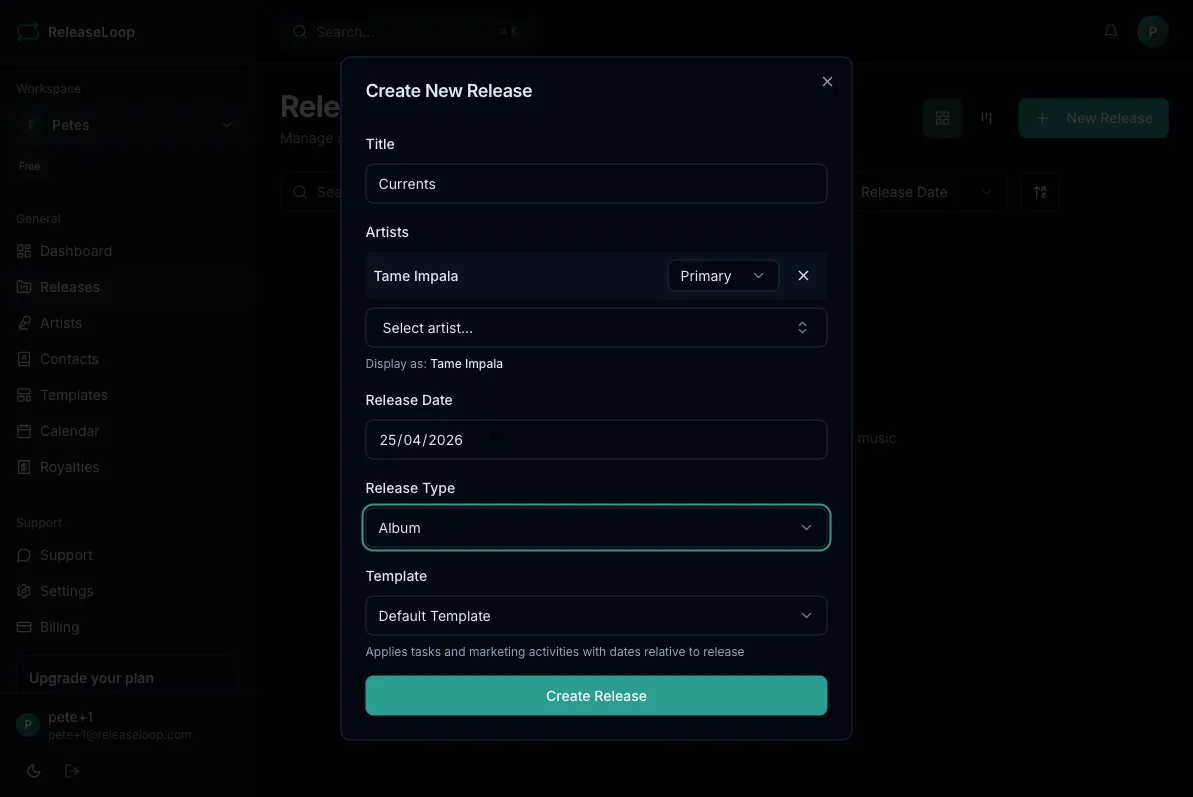
- Click New Release from the releases page or dashboard
- Fill in the details:
- Title — the release name as it will appear on DSPs
- Primary artist(s) — select from your artist roster
- Release date — the planned street date (you can adjust this later if mastering or distributor timelines shift)
- Type — Single, EP, or Album
- UPC — the Universal Product Code assigned by your distributor (add it now or fill it in once you receive it from DistroKid, TuneCore, CD Baby, etc.)
- Catalogue number — your label’s internal reference, useful for tracking across distributor dashboards and royalty statements
- Click Create
Viewing releases
Section titled “Viewing releases”The releases page gives you two ways to see your pipeline:
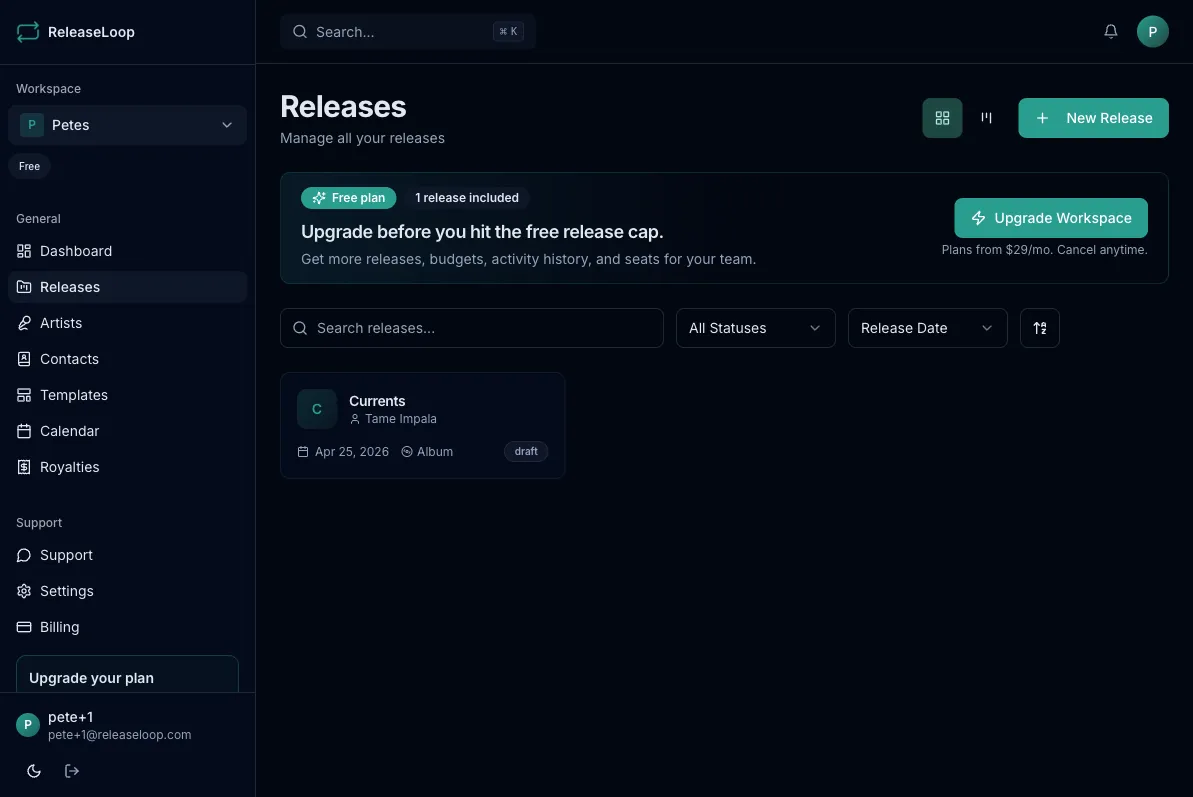
- Grid view — card layout showing cover art, title, status, artists, and release date. Great for scanning what is coming up across your roster.
- Board view — Kanban-style columns organized by release status. Drag releases between columns to update their stage, or use the board to spot bottlenecks — for example, too many releases stuck in Draft while release dates are approaching.
Use the search bar and filters to find specific releases by artist, status, or date range.
Release statuses
Section titled “Release statuses”Releases move through workflow statuses that mirror how a release actually progresses:
| Status | When to use it |
|---|---|
| Draft | You are still finalizing the tracklist, artwork, or metadata — nothing has been submitted to your distributor yet |
| Scheduled | Everything is locked in and delivered to your distributor. The release date is confirmed and you are in the marketing rollout phase. |
| Released | The music is live on Spotify, Apple Music, and other platforms |
| Archived | The campaign is wrapped up, or the release was shelved |
Editing a release
Section titled “Editing a release”Click on any release to open its detail page. From there you can:
- Update metadata like title, artists, dates, UPC, and catalogue number — handy when your distributor assigns a UPC after delivery or the street date shifts
- Change the release status as the campaign progresses
- Set or swap the cover art
- Access all tabs: Tracks, Tasks, Financials, Royalties, Marketing, Assets, Comments, and Activity
Deleting a release
Section titled “Deleting a release”Releases can be deleted by workspace admins from the release detail page. This removes the release and all associated data permanently — use this for duplicate entries or test releases, not for archiving completed campaigns.
Release detail tabs
Section titled “Release detail tabs”Each release has dedicated tabs for managing different aspects of the campaign:
- Tracks — the songs on the release, with ISRCs for royalty matching
- Tasks — your release checklist, from mastering deadlines to distributor delivery
- Financials — budget and revenue tracking
- Marketing — your promotional rollout across social, DSPs, press, and email
- Assets — artwork, master WAVs, promo photos, and other files
- Comments — team discussion and a full activity log